

AI Bookkeeping
AI Bookkeeping reads your bank statement and does your bookkeeping automatically. Upload a statement, chat with the AI to review and categorize transactions, then view your Profit & Loss and manage your General Ledger.
Note: AI Bookkeeping is available on the Premium plan.
Navigate to AI Bookkeeping on the left menu and click Upload. Select your bank statement (PDF, up to 5 MB each, and up to 12 files at once).
Pigeonbook will process it - the status changes from Uploaded → Processing → Success in the "Upload Statement" tab. Click a Success row to see the extracted transactions (bank, account number, dates, opening/closing balance, and each transaction).
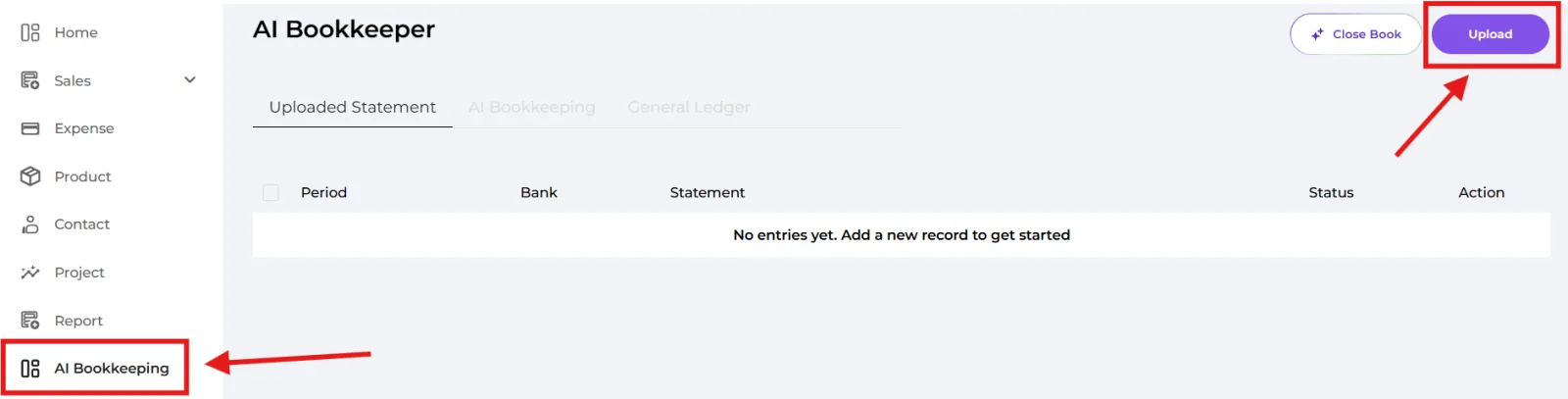
Click Close Book to start a bookkeeping session. Choose Monthly or Yearly and pick a Start Date then continue - you'll be taken to the chat.

In the chat, tell that AI what you need - for example:
- "Categorize my expenses"
- "Review the transactions"
- "Check my balances"
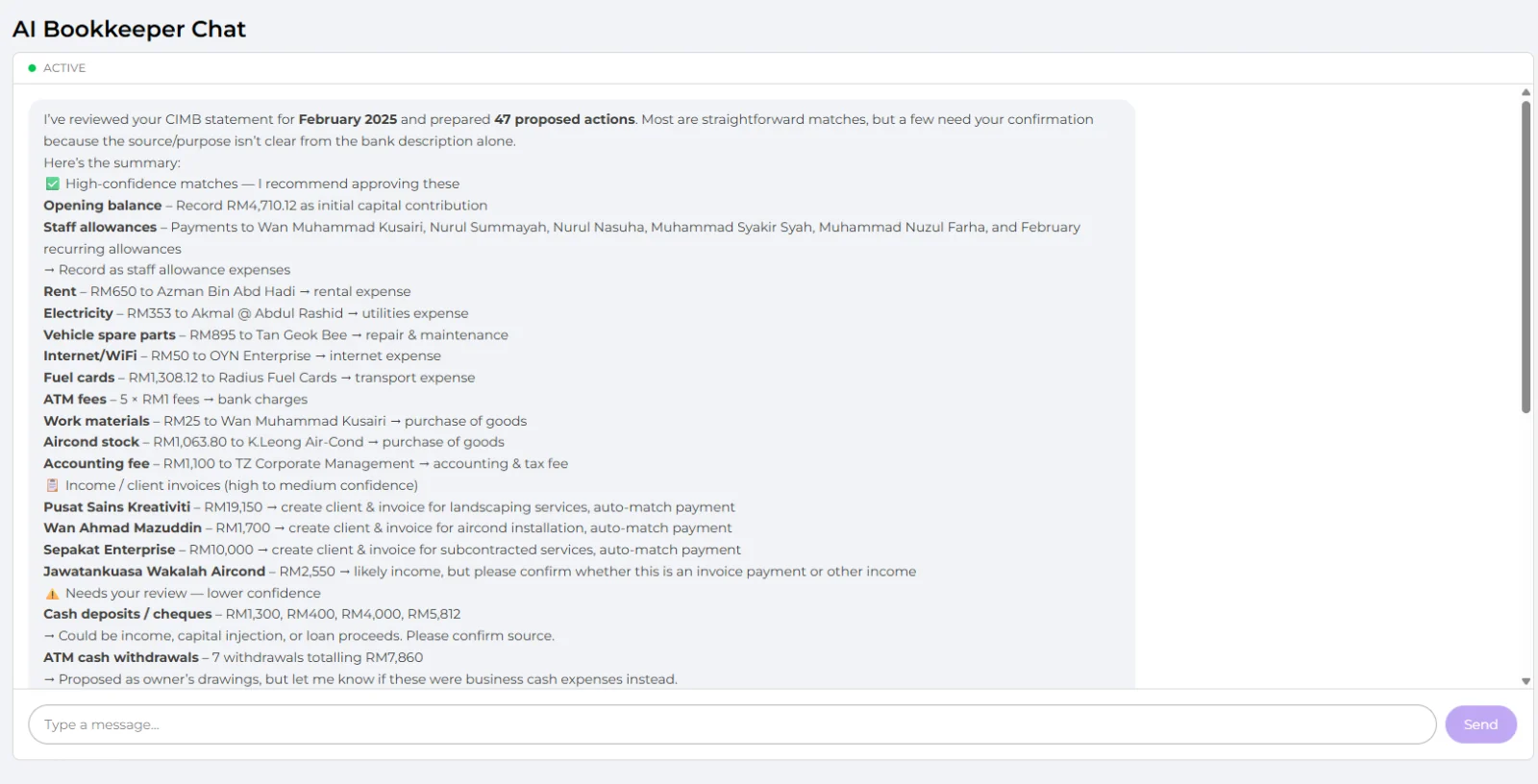
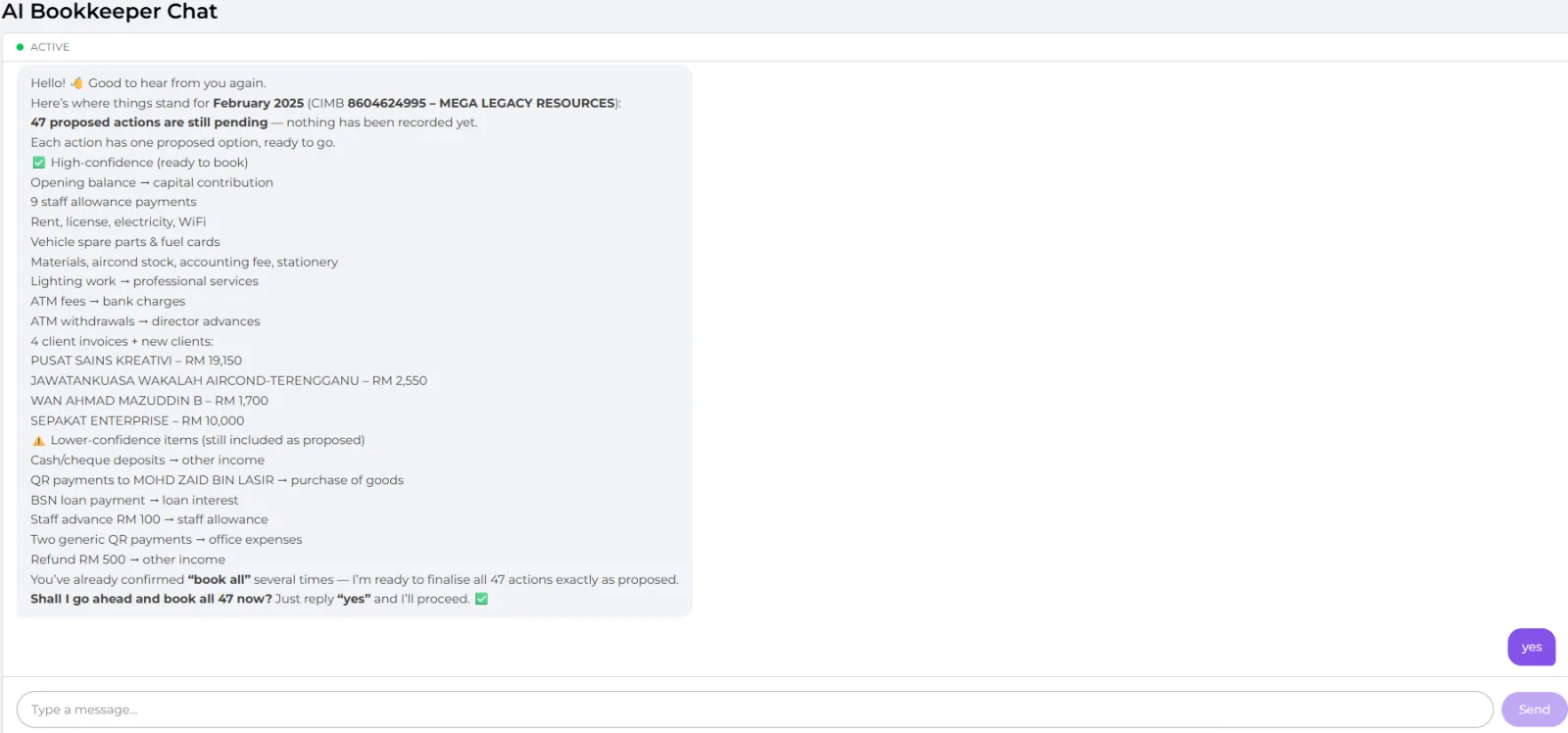
The AI will ask questions and propose entries; reply to confirm or correct anything. Keep chatting until it says it's done.
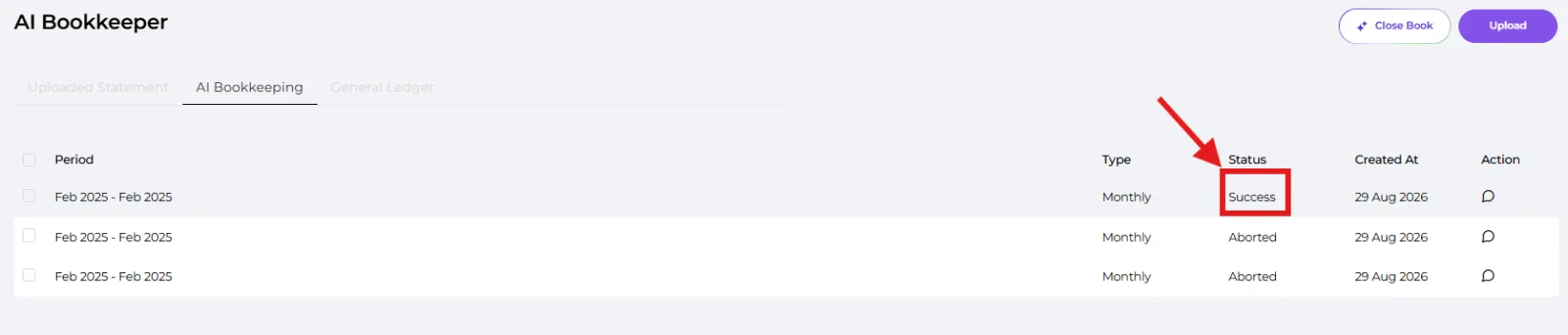
Once the session is complete, open it from the AI Bookkeeping tab to view your Profit & Loss and Balance Sheet. You can Regenerate these reports anytime if needed.
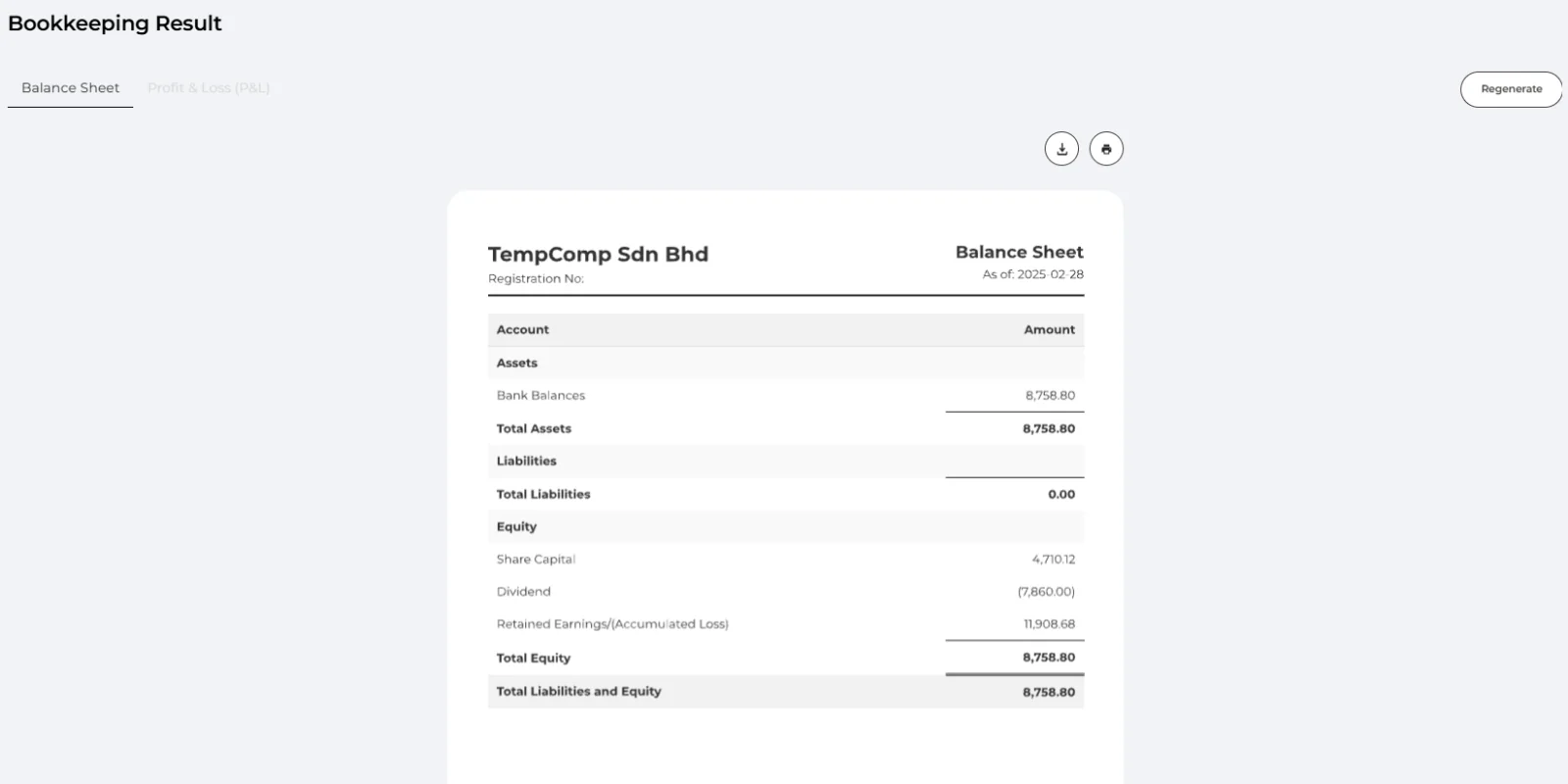
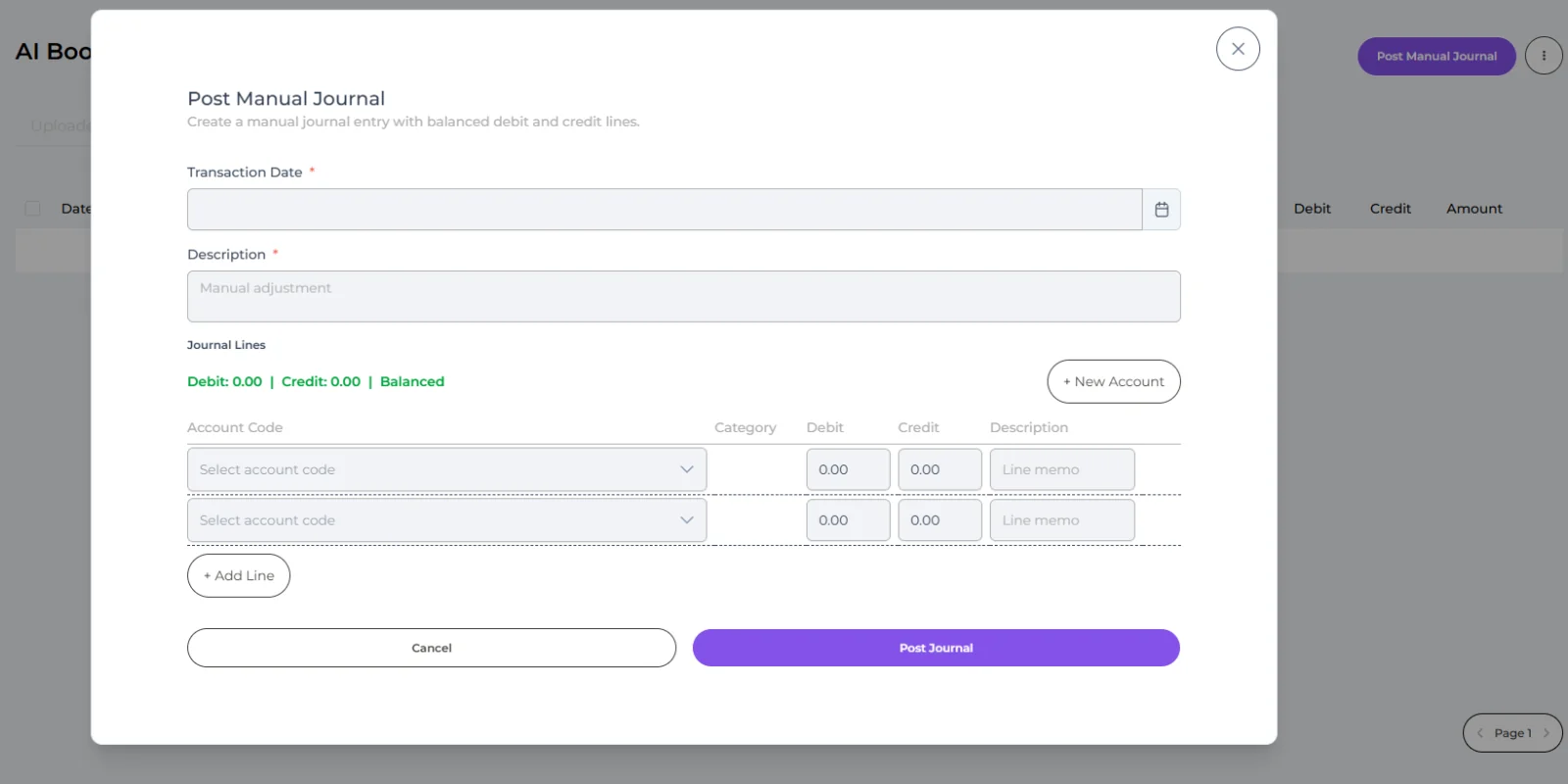
Open the General Ledger tab to see all your journal entries. To add or edit one yourself, click Post Manual Journal:
🔹 Transaction Date — the date of the entry.
🔹 Description — what this entry is for.
🔹 Journal Lines — for each line, pick an Account Code, then enter the Debit or Credit amount. The total Debit must equal the total Credit (a "Balanced" indicator confirms this).
🔹 + New Account — add a new account code if the one you need isn't listed (Account Code, Name, and Type).
Click Save to post the entry.
💡 Exports (Optional): from the "..." menu you can export Journal, Trial Balance, and Chart of Accounts.
Well done! You’ve finished this guide.
You can go back to any step at any time.