

Delivery Order
A Delivery Order (DO) records the items you're delivering to a customer. You generate it from an issued invoice to track what and how much has been shipped.
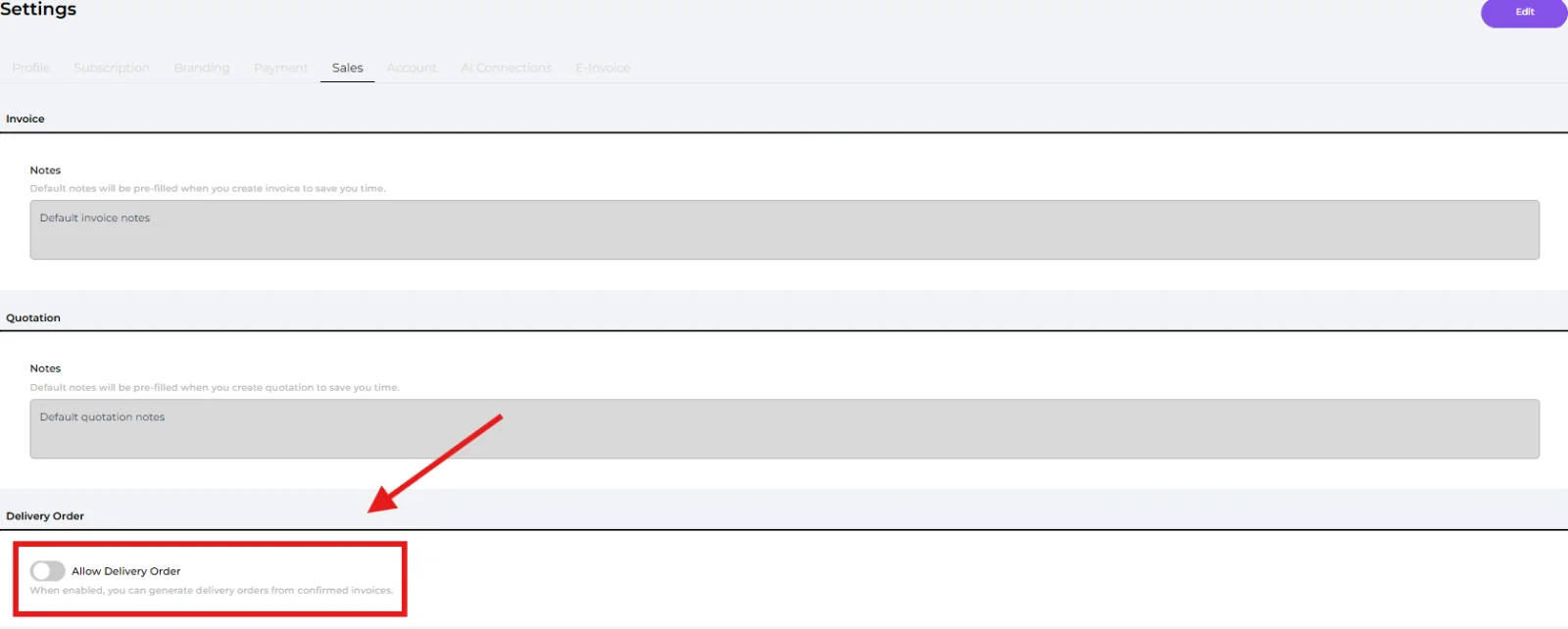
First, turn on the feature: go to Settings → Sales and switch on "Allow Delivery Order".
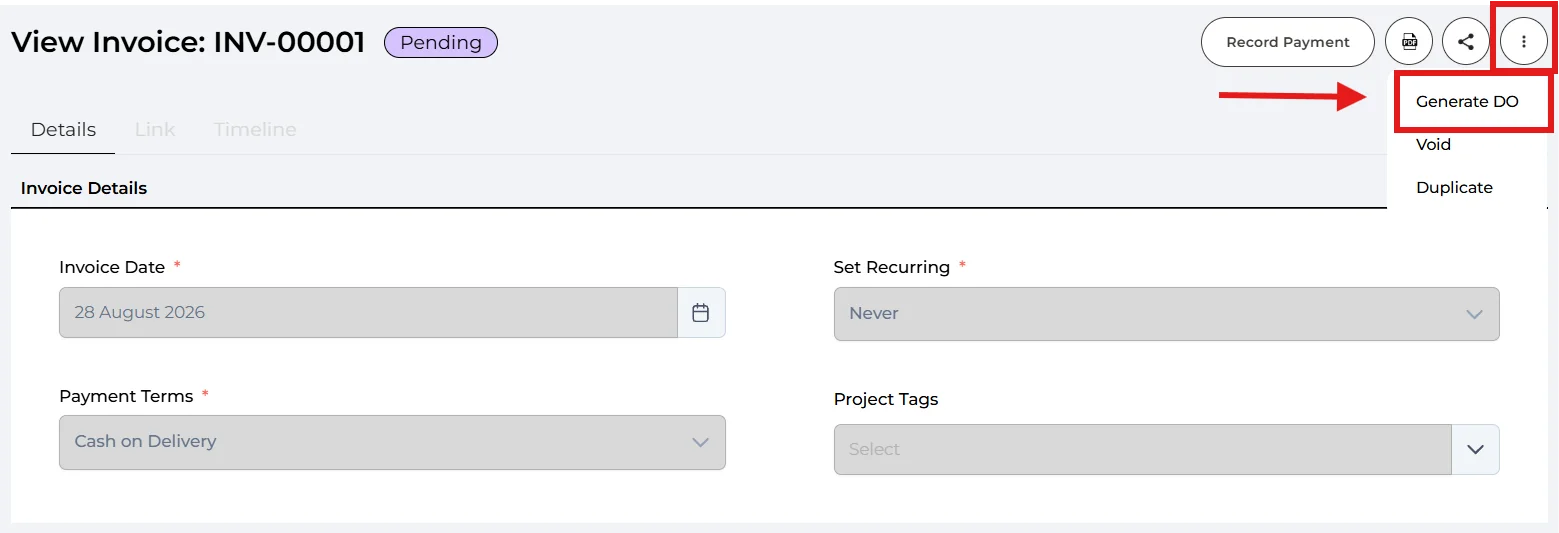
Open the Invoice you want to deliver, then click the "..." (More) menu and select "Generate DO". (You can also do this from the invoice's Link tab.)
Note: "Generate DO" only appears on invoices that are no longer in Draft, and only if there are still items left to deliver.
🔹 DO Number
Assigned automatically.
🔹 DO Date (Required)
The delivery date.
🔹 Items
Carried over from the invoice automatically. For each item you'll see the Original Qty, the Remaining amount, and a Qty to deliver box. Enter how many you're delivering this time (you can deliver part of it now and the rest later).
🔹 Delivery Address
Choose Same as billing address, Different address (pick an existing address), or New Address (enter a new one: Label, Attention To, Contact Number, Address)
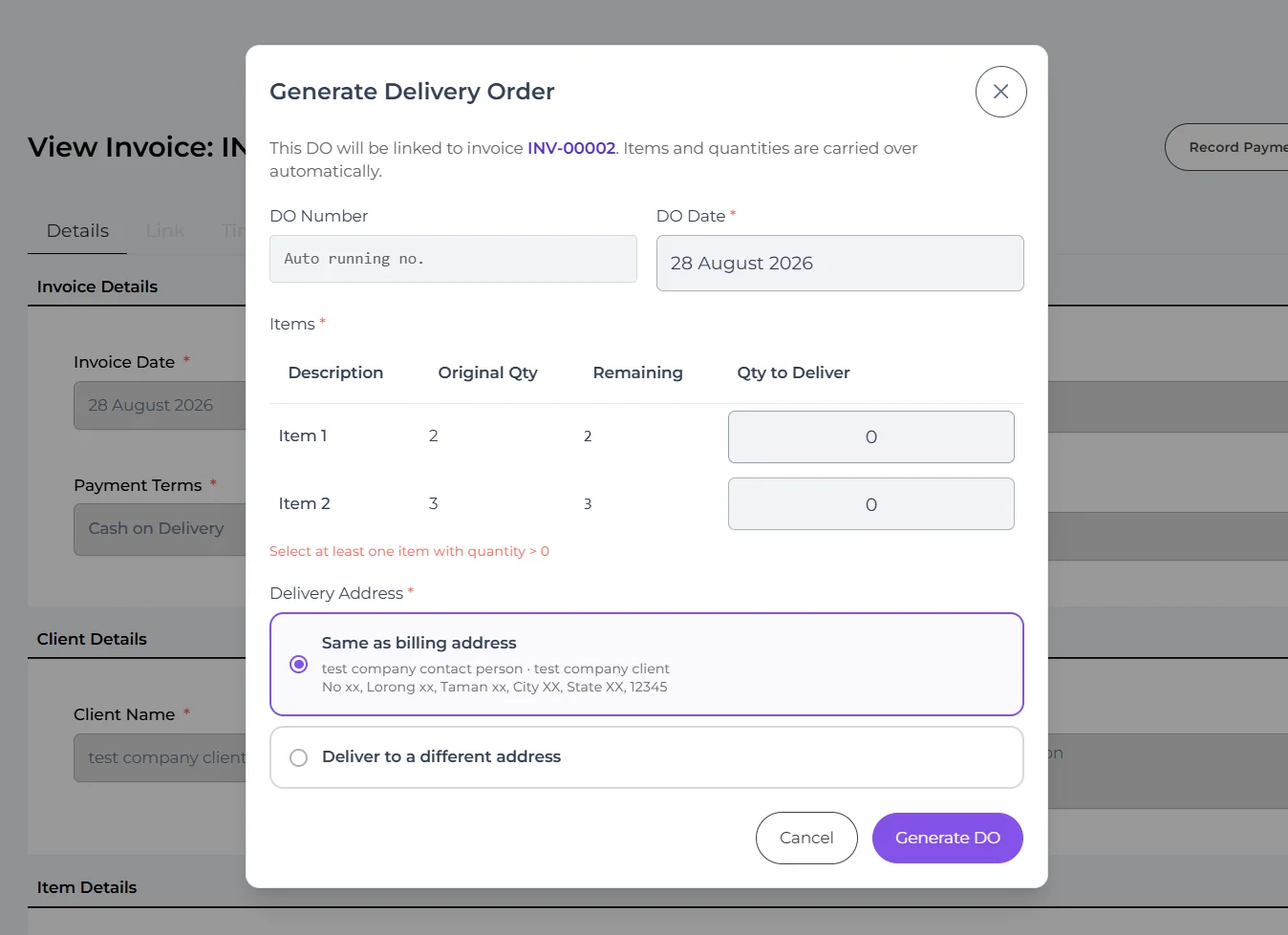
Click "Generate DO". The delivery order is created in Draft status.
- Confirm - finalize the DO (Draft → Confirmed)
- Void - cancel the DO if it's no longer needed.
- Print / Download PDF - share or print the DO
💡 Partial delivery: Pigeonbook keeps track of the remaining quantity on each invoice item, so you can generate more DOs until everything is delivered.
Well done! You’ve finished this guide.
You can go back to any step at any time.